Find Telugu books, newspapers, magazines and palm-leaf manuscripts from the Internet Archive in one catalogue. 1,11,209 scans: 42,220 books and other titles, and 61,971 issues of 501 newspapers and magazines. Updated 24 October 2026.ఇంటర్నెట్ ఆర్కైవ్‌లోని తెలుగు పుస్తకాలు, పత్రికలు, తాళపత్ర గ్రంథాల వివరాలు ఒకే జాబితాలో. మొత్తం 1,11,209 స్కాన్లు: 42,220 పుస్తకాలు మొదలైనవి, 501 పత్రికల 61,971 సంచికలు. చివరి నవీకరణ: 24 అక్టోబర్ 2026.

Help

How to find books and read them here, and how to keep what you save.

Finding books
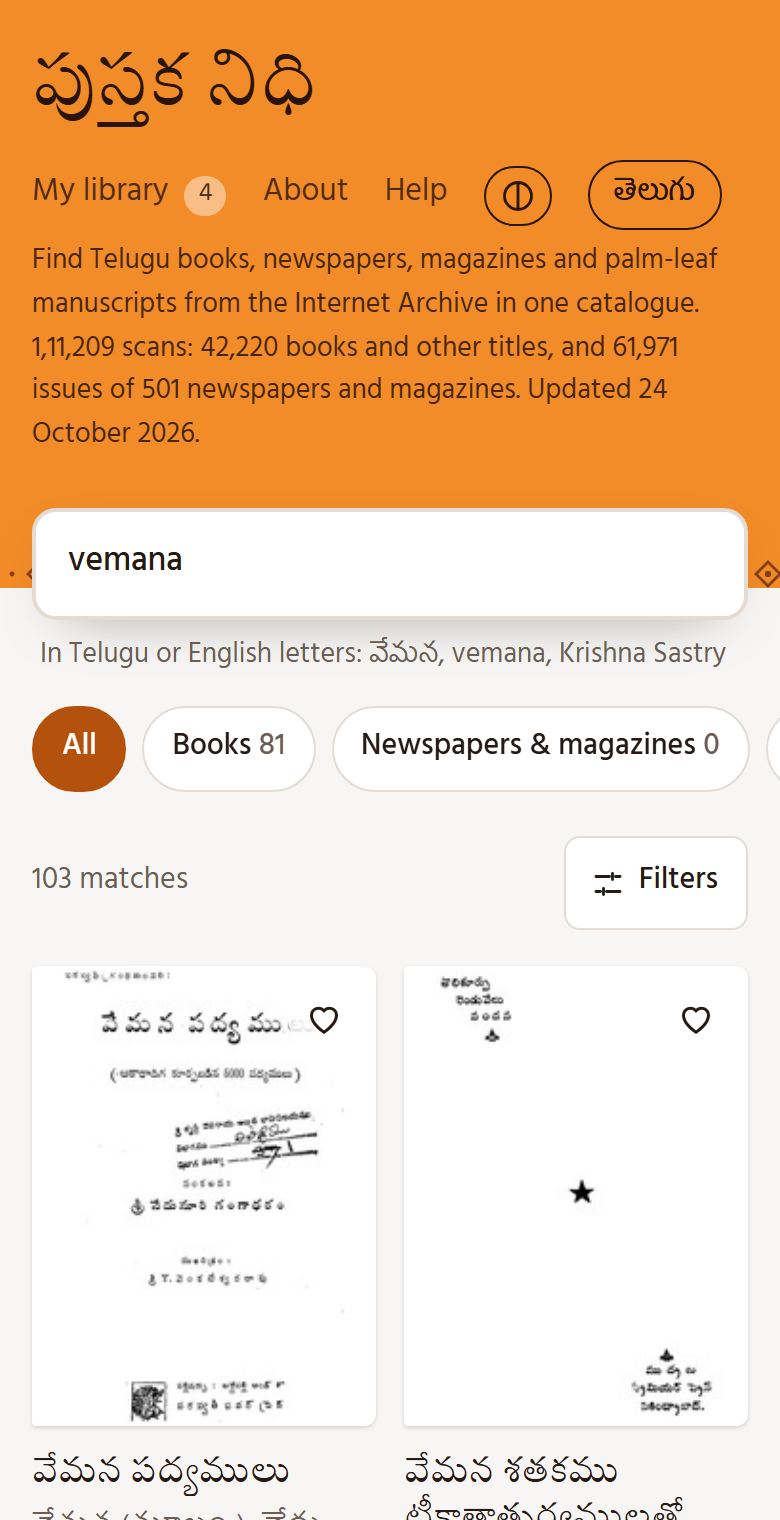
Search results for vemana
  • Type a title or an author in Telugu or in English letters: వేమన and vemana both work, and so do spellings that differ a little.
  • Searching for a writer shows their own books first, then books about them.
  • Choose a type (Books, Newspapers and magazines, Palm-leaf manuscripts…) or open Filters for the collection, the years and the order: best match, most read, newest or oldest first, or by title.
  • In a book's details, tap the author's name to see only that author's books. Remove the “Author” chip to see everything again.
  • Writers known by a pen name are found by either name: చలం or గుడిపాటి వెంకటచలం, శ్రీశ్రీ or శ్రీరంగం శ్రీనివాసరావు.

Reading
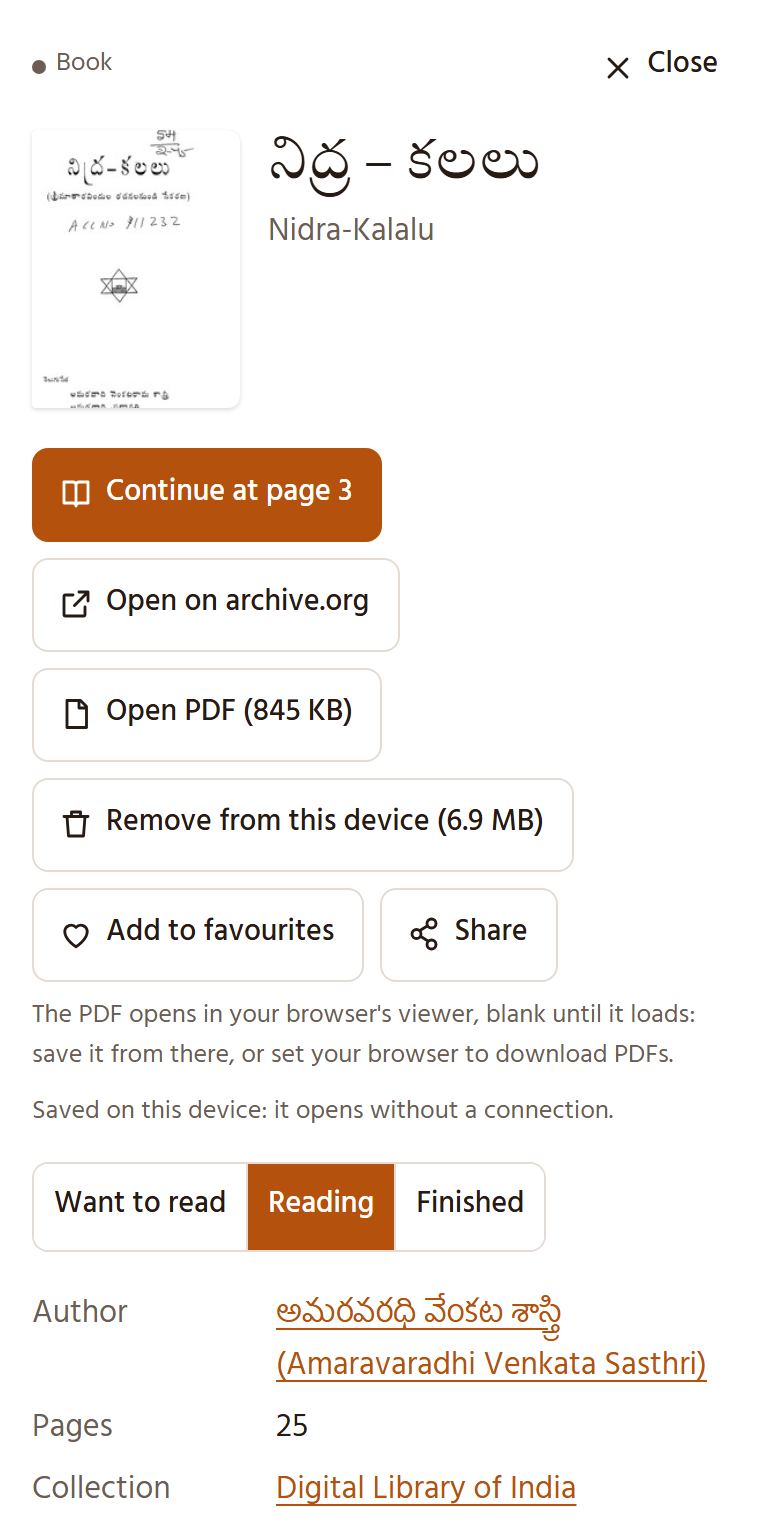
A book’s details: Read here, Open PDF, Save for offline reading
  • Read here opens the book. It remembers your page, and “Continue at page …” takes you back.
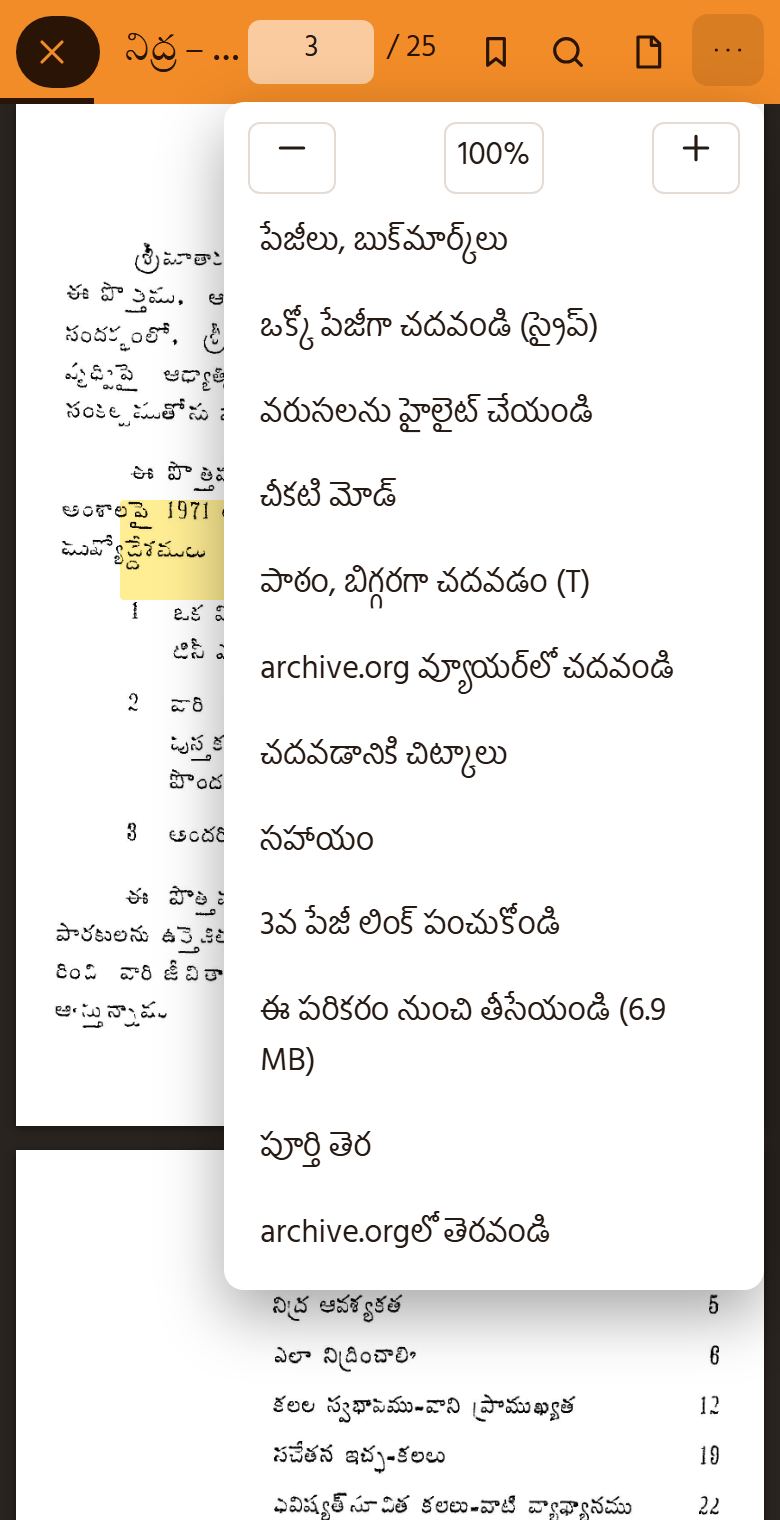
  • Scroll down to read, or choose Page by page in the ⋯ menu and swipe.
  • Pinch to zoom, or use − and + in the ⋯ menu. Tap the page to hide or show the bar.
  • The bookmark button marks the page; the magnifier searches inside the book; Text and read aloud shows the page as text and can read it out.
  • On a computer: ← and → turn pages, + and − zoom, B bookmarks, / searches, T shows the text, P switches the view, N is night mode.
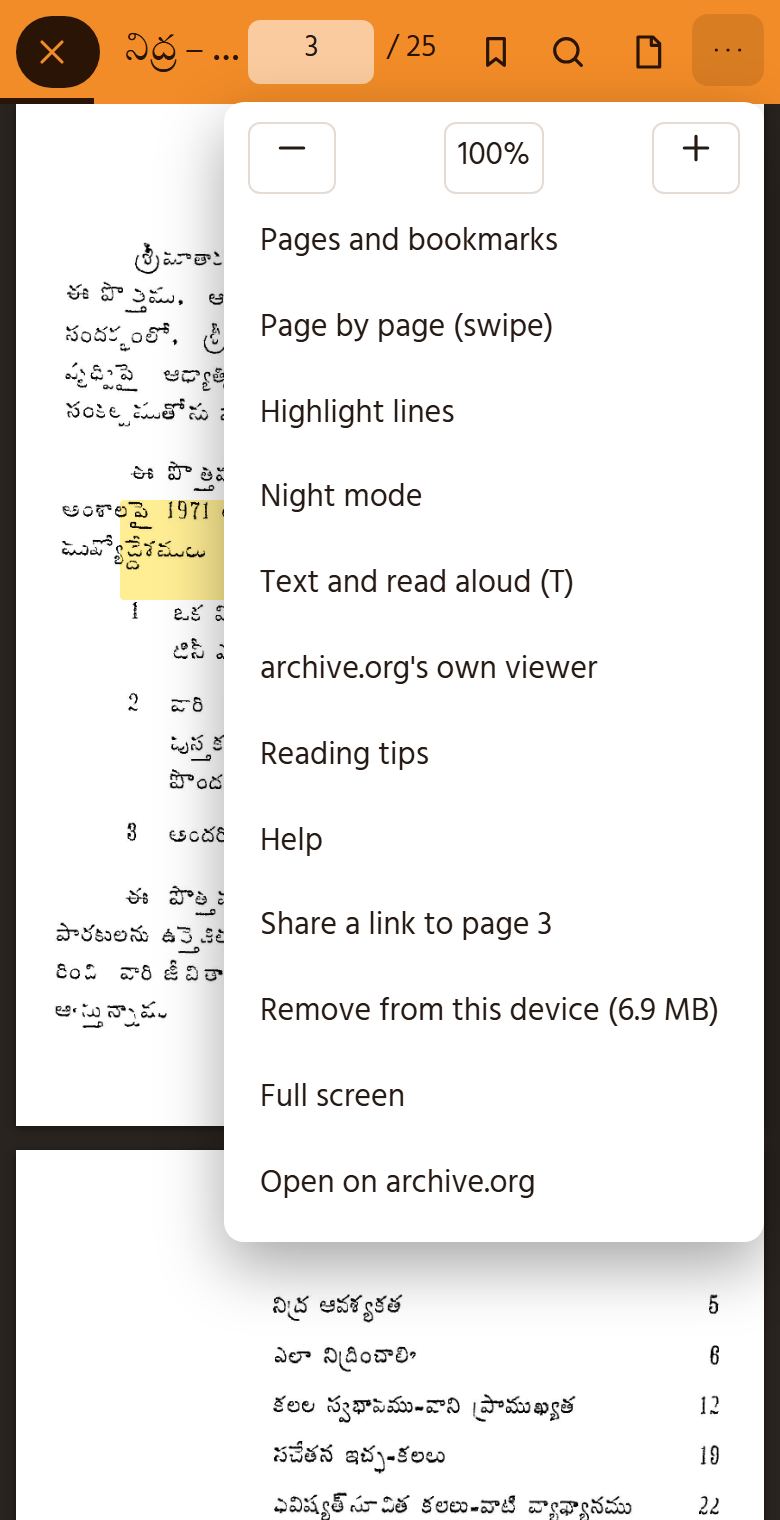
The reader’s ⋯ menu

Highlights and notes

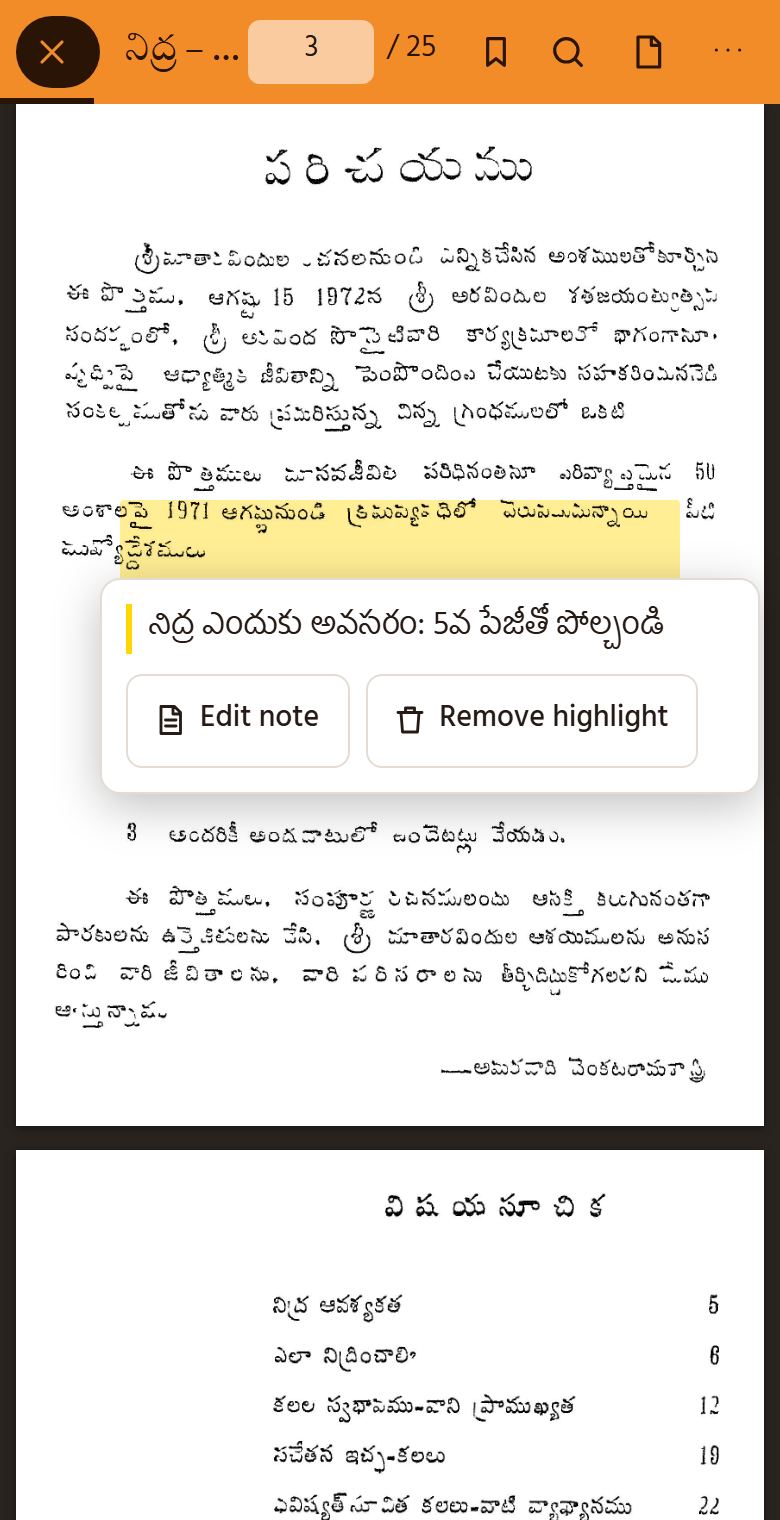
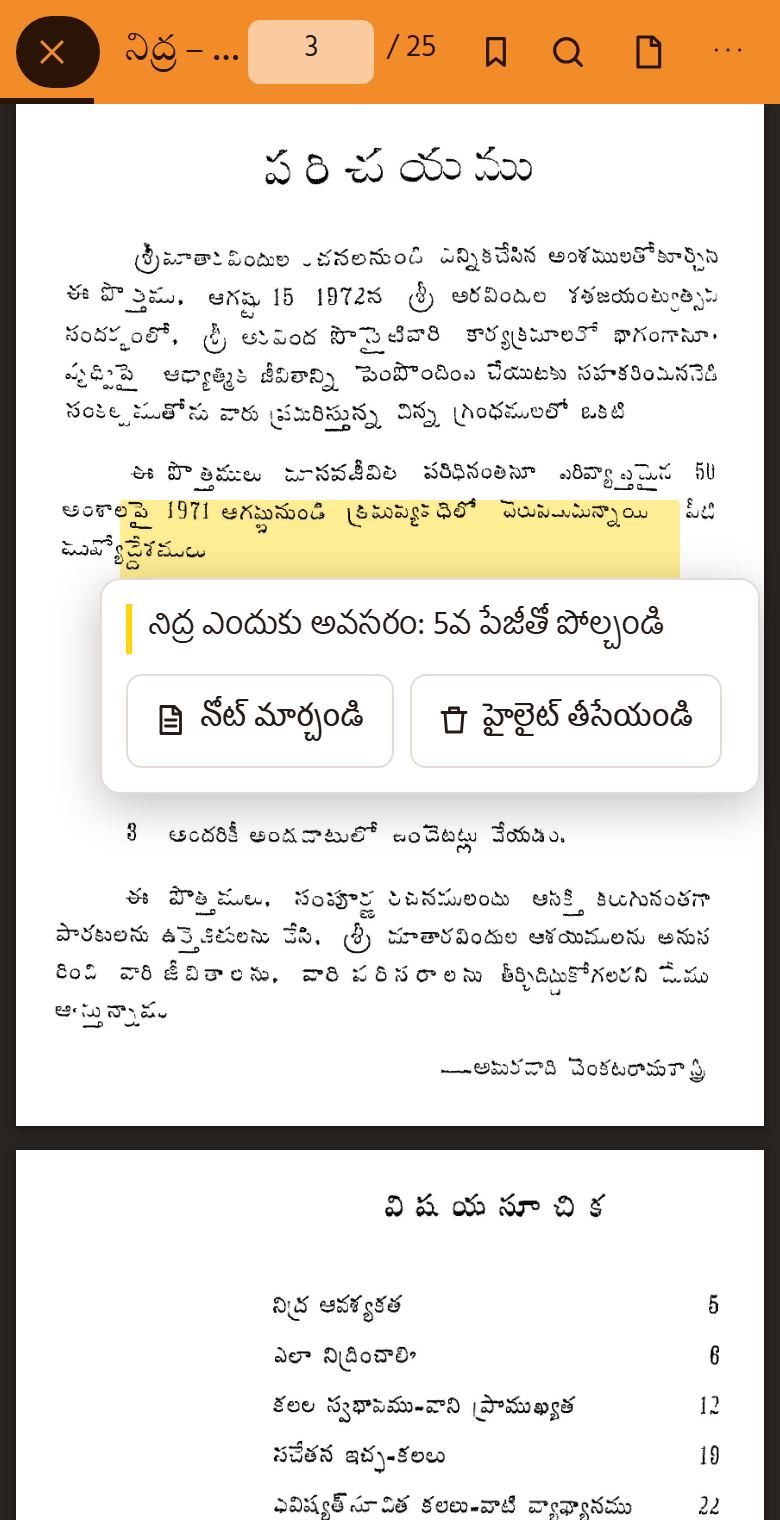
A highlight with its note
  • Press and hold on a line for a moment, then drag over the lines you want: they turn yellow. With a mouse, in the scrolling view, just drag.
  • To highlight several passages in a row, choose Highlight lines (the marker button, or the ⋯ menu on a phone): every drag then highlights, and a tap marks one line. Choose Done highlighting to read normally again.
  • Tap a highlight to add a note, change it, or remove the highlight. Removed one by mistake? Choose Undo.
  • Your highlights and notes are listed under Bookmarks in the side panel (Pages and bookmarks in the ⋯ menu).

Reading without a connection

  • Choose Save for offline reading in a book's details, or in the ⋯ menu while reading. The pages are saved on this device, about a quarter of a megabyte each; you can stop and continue later.
  • A saved book then opens with no connection. My library lists them under On this device, with the space each takes; remove one there, or from its details.
  • Searching inside a book and its text need a connection.
  • If the device runs short of space, the browser may remove saved books. The list shows what is still there.
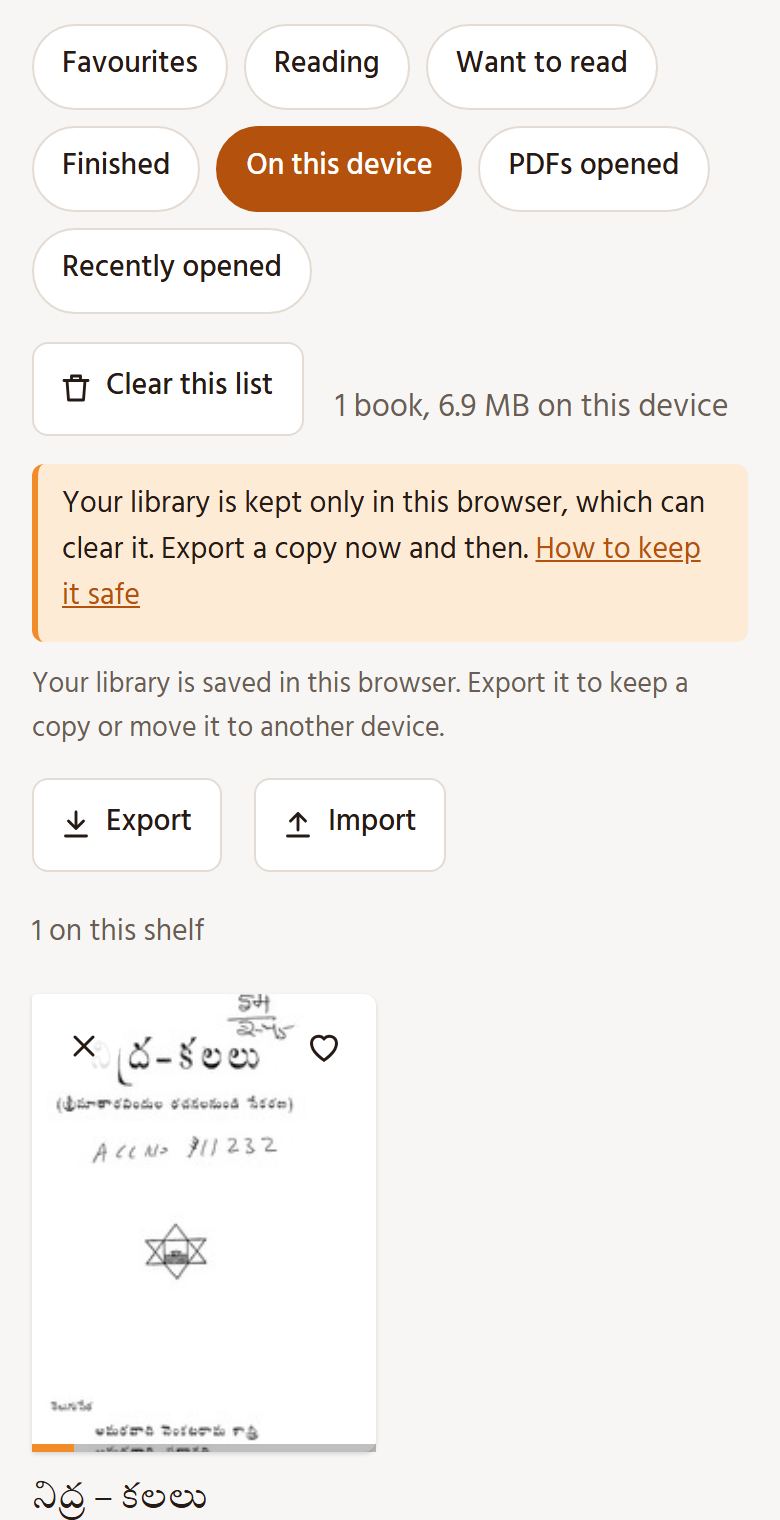
My library: On this device

Opening the PDF

  • Open PDF shows the file's size. It opens in your browser's PDF viewer, which stays blank until the file has loaded; save it from there.
  • To save PDFs straight away instead: in Chrome or Edge, Settings, then Privacy and security, Site settings, PDF documents, “Download PDFs”; in Firefox, Settings, then Applications, Portable Document Format, “Save File”.
  • The PDF comes from the Internet Archive; some books have none. My library lists the PDFs you opened here.

Installing it as an app

  • Installed, the site opens from your home screen like an app, and searching works without a connection.
  • On Android, and in Chrome or Edge on a computer: choose Install in the bar at the bottom of the screen, or Install as an app at the foot of any page.
  • On an iPhone or iPad, in Safari: tap Share, then Add to Home Screen.

Keeping your library safe
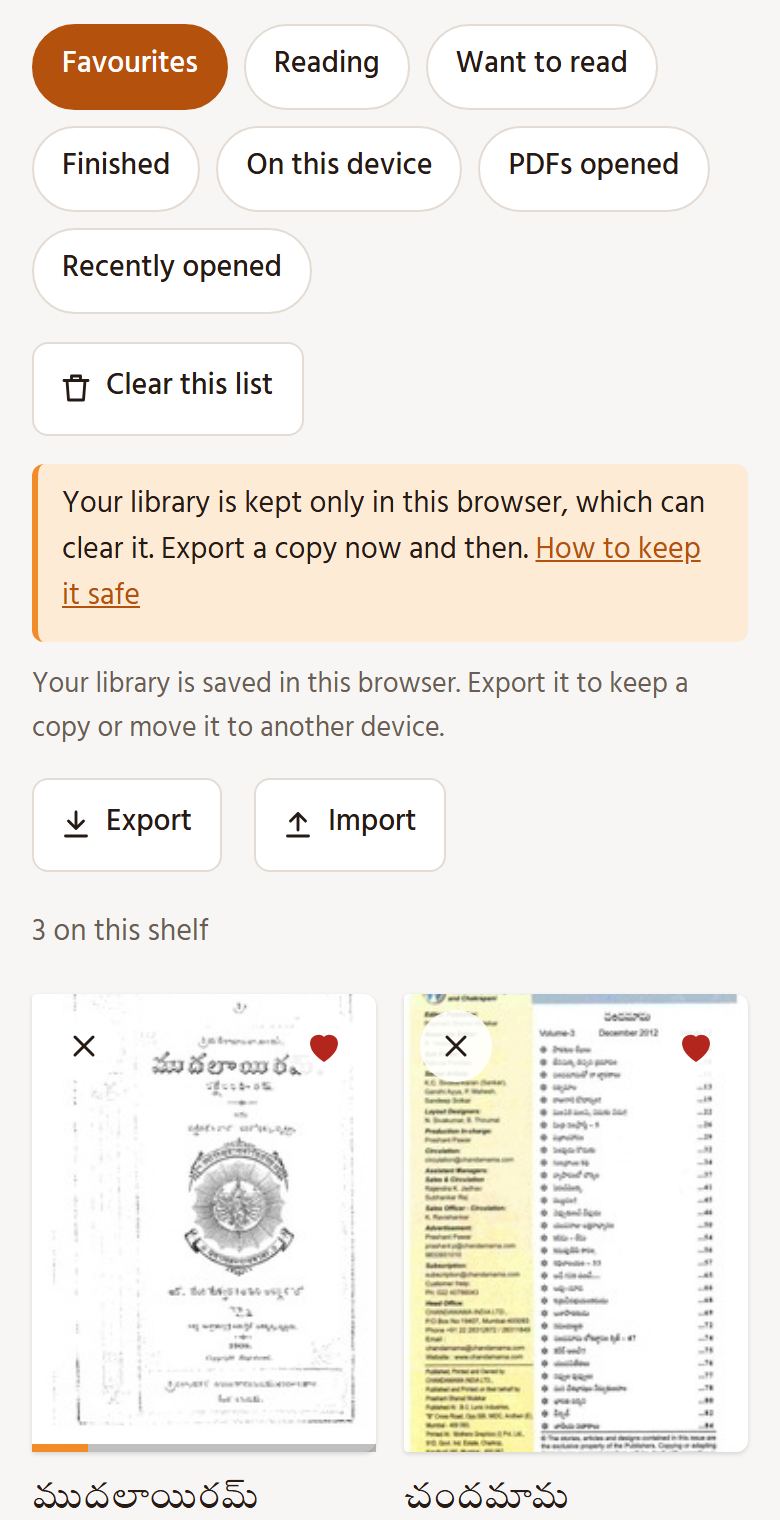
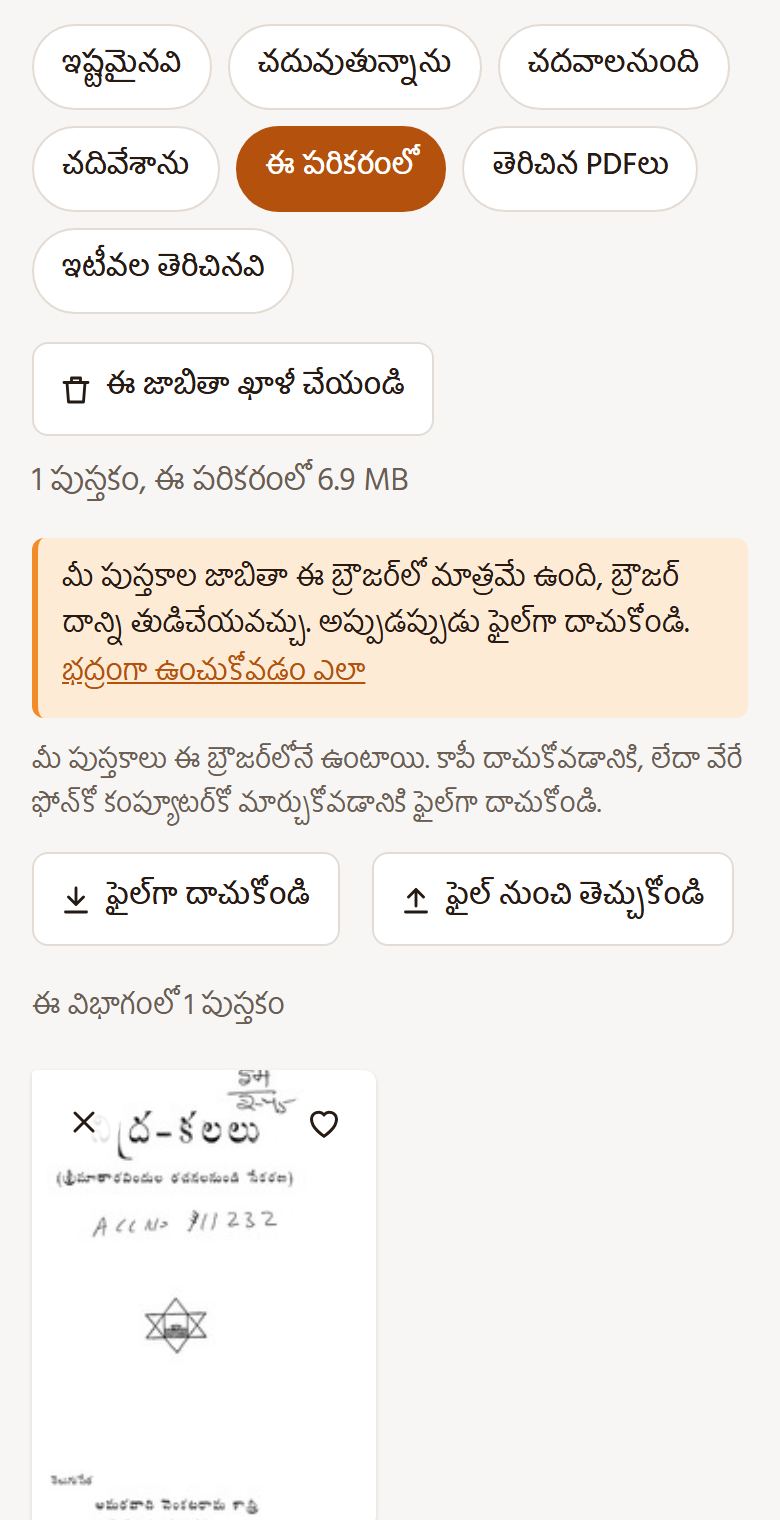
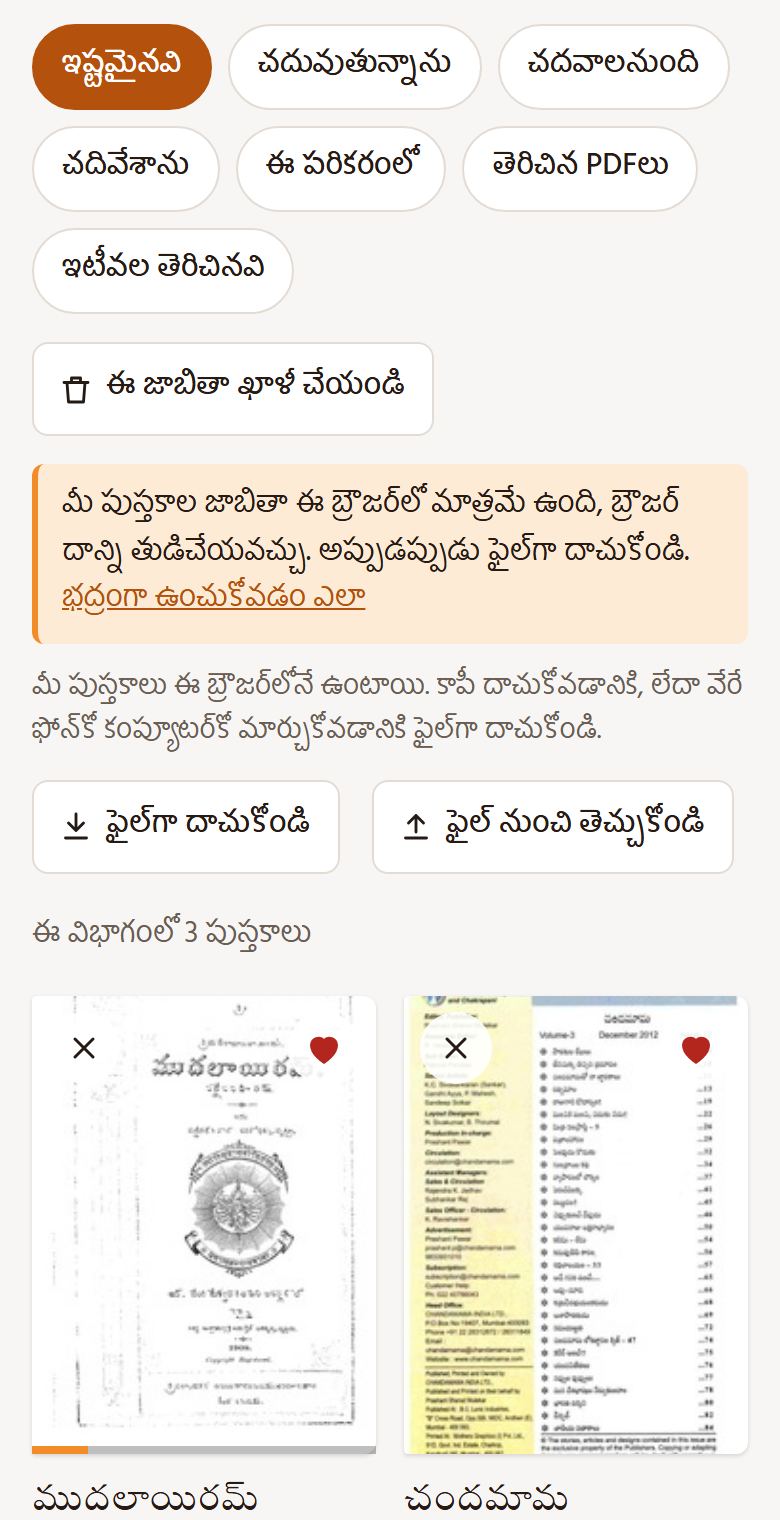
My library with Export and Import
  • Your favourites, reading status, the page you reached, bookmarks, notes, highlights and history are kept only in this browser, on this device. Nobody else sees them, and there is no account.
  • That also means they can be lost: clearing the browser's data removes them, and on an iPhone or iPad Safari may clear them after a week without a visit, unless the site is on your Home Screen (see above).
  • So now and then, in My library, choose Export: it saves your library as a file. Import that file to restore it, or to move it to another phone, computer or browser; it is added to what is already there.
  • Books saved for offline reading aren't in the file: save them again on the other device.

Reporting a mistake

Many titles were written in Telugu letters from English-letter titles, some by computer, and are still being checked. If a title, author or year is wrong, choose Report a mistake in the book's details. What has changed is on the Updates and corrections page.
సహాయం

పుస్తకాలను ఎలా వెతికి చదవాలో, మీ పుస్తకాల జాబితాను ఎలా భద్రంగా ఉంచుకోవాలో ఇక్కడ తెలుసుకోండి.

పుస్తకాలు వెతకడం

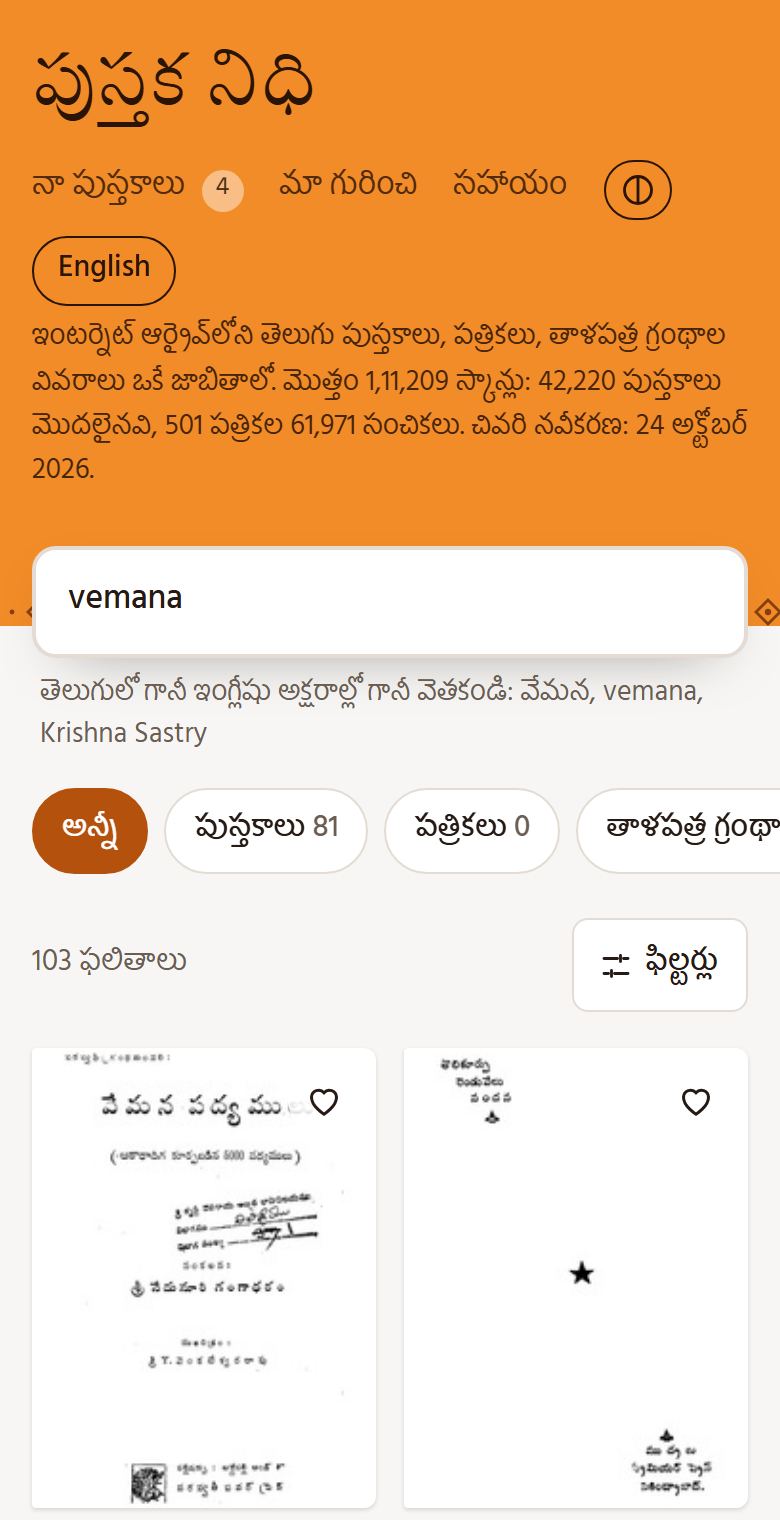
vemana కోసం వెతికిన ఫలితాలు
  • పుస్తకం పేరు లేదా రచయిత పేరు తెలుగులో గానీ, ఇంగ్లీషు అక్షరాల్లో గానీ టైప్ చేయండి. ఉదాహరణకు, వేమన, vemana అని వెతికితే ఒకే పుస్తకాలు కనిపిస్తాయి. పేరులో అక్షరాలు కొద్దిగా తేడాగా ఉన్నా పుస్తకాలు దొరుకుతాయి.
  • రచయిత పేరు కోసం వెతికితే, ముందు ఆయన లేదా ఆమె రాసిన పుస్తకాలు, తర్వాత వారి గురించి ఉన్న పుస్తకాలు కనిపిస్తాయి.
  • రకాన్ని (పుస్తకాలు, వార్తాపత్రికలు, పత్రికలు, తాళపత్ర గ్రంథాలు…) ఎంచుకోండి; సేకరణ, సంవత్సరాలు, క్రమం కోసం ఫిల్టర్లు తెరవండి.
  • పుస్తకం వివరాల్లో రచయిత పేరు నొక్కితే, ఆ రచయిత పుస్తకాలే కనిపిస్తాయి. మళ్లీ అన్ని పుస్తకాలూ చూడాలంటే రచయితలందరివీ చూపించండి ఎంచుకోండి.
  • కలం పేరుతో రాసిన రచయితలు రెండు పేర్లతోనూ దొరుకుతారు: చలం లేదా గుడిపాటి వెంకటచలం, శ్రీశ్రీ లేదా శ్రీరంగం శ్రీనివాసరావు.

చదవడం

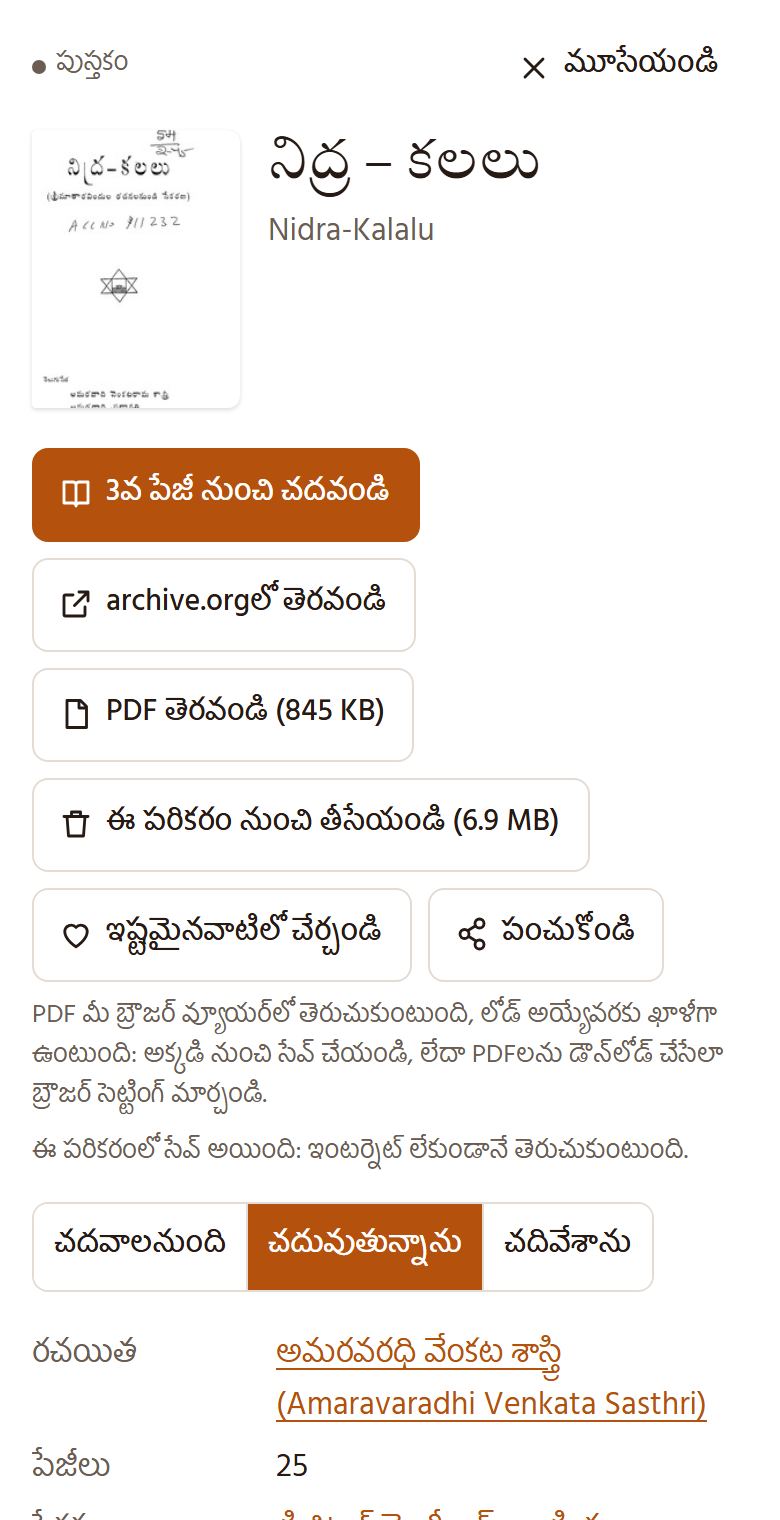
పుస్తకం వివరాలు
  • ఇక్కడ చదవండి నొక్కితే పుస్తకం తెరుచుకుంటుంది. మీరు ఏ పేజీలో ఆపారో గుర్తుంచుకుంటుంది; మళ్లీ అక్కడికే తీసుకెళ్తుంది.
  • పేజీని కిందికి జరుపుతూ చదవండి. ఒక్కో పేజీగా చదవాలంటే ⋯ మెనూలో ఒక్కో పేజీగా చదవండి ఎంచుకుని, పేజీని పక్కకు జరపండి.
  • పేజీని రెండు వేళ్లతో పెద్దది చేయండి, లేదా ⋯ మెనూలో −, + బటన్లు వాడండి. పై పట్టీని దాచడానికి లేదా చూపించడానికి పేజీ మీద నొక్కండి.
  • బుక్‌మార్క్ బటన్‌తో పేజీని గుర్తు పెట్టుకోవచ్చు. భూతద్దం బటన్‌తో పుస్తకంలో వెతకవచ్చు. పాఠం, బిగ్గరగా చదవడం ఎంచుకుంటే పేజీలోని అక్షరాలను చూపించి, వీలైతే చదివి వినిపిస్తుంది.
  • కంప్యూటర్‌లో: ←, → బాణాలతో పేజీలు మార్చండి; +, − తో పెద్దది లేదా చిన్నది చేయండి. Bతో బుక్‌మార్క్ పెట్టండి, /తో పుస్తకంలో వెతకండి, Tతో పాఠం చూపించండి, Pతో చదివే పద్ధతి మార్చండి, Nతో చీకటి మోడ్ మార్చండి.
చదివే చోట ⋯ మెనూ

హైలైట్‌లు, నోట్స్

నోట్‌తో ఉన్న హైలైట్
  • ఒక పంక్తిని కాసేపు నొక్కి పట్టుకుని, గుర్తు పెట్టాలనుకున్న పంక్తుల మీదుగా లాగండి. అవి పసుపు రంగులో కనిపిస్తాయి. కంప్యూటర్‌లో పేజీలను కిందికి జరిపే పద్ధతిలో ఉంటే, మౌస్‌తో పంక్తుల మీదుగా లాగండి.
  • చాలా చోట్ల గుర్తు పెట్టాలంటే వరుసలను హైలైట్ చేయండి ఎంచుకోండి. ఇది మార్కర్ బటన్‌లో ఉంటుంది; ఫోన్‌లో ⋯ మెనూలో ఉంటుంది. ఈ పద్ధతిలో లాగిన పంక్తులన్నీ గుర్తు పడతాయి; ఒక్కసారి నొక్కితే ఒక్క పంక్తికి గుర్తు పడుతుంది. మామూలుగా చదవడానికి హైలైట్ చేయడం ముగించండి నొక్కండి.
  • నోట్ రాయడానికి లేదా మార్చడానికి, గుర్తు పెట్టిన భాగం మీద నొక్కండి. గుర్తును తీసేయడానికి కూడా దాని మీద నొక్కండి. పొరపాటున గుర్తు తీసేస్తే మళ్లీ పెట్టండి నొక్కండి.
  • మీరు గుర్తు పెట్టిన భాగాలు, నోట్స్ పక్క ప్యానెల్‌లోని బుక్‌మార్క్‌లులో ఉంటాయి. ఫోన్‌లో ⋯ మెనూలో పేజీలు, బుక్‌మార్క్‌లు ఎంచుకోండి.

ఇంటర్నెట్ లేకుండా చదవడం

  • పుస్తకం వివరాల్లో లేదా చదువుతున్నప్పుడు ⋯ మెనూలో ఇంటర్నెట్ లేకుండా చదవడానికి సేవ్ చేయండి ఎంచుకోండి. పేజీలు ఈ పరికరంలో సేవ్ అవుతాయి. ఒక్కో పేజీకి సుమారు పావు మెగాబైటు స్థలం పడుతుంది. మధ్యలో ఆపి, తర్వాత మళ్లీ కొనసాగించవచ్చు.
  • సేవ్ చేసిన పుస్తకాన్ని ఇంటర్నెట్ లేకుండానే తెరవవచ్చు. “నా పుస్తకాలు”లో ఈ పరికరంలో ఎంచుకుంటే, సేవ్ చేసిన పుస్తకాలు, అవి వాడుతున్న స్థలం కనిపిస్తాయి. అక్కడి నుంచి లేదా పుస్తకం వివరాల నుంచి వాటిని తీసేయవచ్చు.
  • పుస్తకంలో పదాల కోసం వెతకడానికి, పేజీలోని పాఠాన్ని చూడడానికి ఇంటర్నెట్ కావాలి.
  • పరికరంలో ఖాళీ స్థలం తక్కువైతే, బ్రౌజర్ సేవ్ చేసిన పుస్తకాలను తీసేయవచ్చు. అప్పుడు జాబితాలో మిగిలిన పుస్తకాలే కనిపిస్తాయి.
“నా పుస్తకాలు”: ఈ పరికరంలో

PDF తెరవడం

  • PDF తెరవండి బటన్‌లో PDF ఫైలు పరిమాణం కనిపిస్తుంది. అది బ్రౌజర్‌లోని PDF వీక్షకంలో తెరుచుకుంటుంది. ఫైలు పూర్తిగా లోడ్ అయ్యేవరకు ఆ వీక్షకం ఖాళీగా కనిపించవచ్చు. తెరిచాక అక్కడి నుంచి ఫైలును సేవ్ చేయండి.
  • PDFలు నేరుగా డౌన్‌లోడ్ కావాలంటే బ్రౌజర్ సెట్టింగ్స్ మార్చండి. Chrome లేదా Edgeలో Settings → Privacy and security → Site settings → PDF documents → “Download PDFs” ఎంచుకోండి. Firefoxలో Settings → Applications → Portable Document Format → “Save File” ఎంచుకోండి.
  • PDF ఇంటర్నెట్ ఆర్కైవ్ నుంచి వస్తుంది; కొన్ని పుస్తకాలకు PDF ఉండదు. ఇక్కడి నుంచి తెరిచిన PDFలు “నా పుస్తకాలు”లో కనిపిస్తాయి.

యాప్‌లా ఇన్‌స్టాల్ చేయడం

  • సైట్‌ను యాప్‌లా ఇన్‌స్టాల్ చేస్తే, హోమ్ స్క్రీన్‌పై ఉన్న దాని గుర్తును నొక్కి తెరవవచ్చు. ఇంటర్నెట్ లేకపోయినా పుస్తకాల కోసం వెతకవచ్చు.
  • Androidలో, కంప్యూటర్‌లో Chrome లేదా Edgeలో: తెర కింద పట్టీలో ఇన్‌స్టాల్ చేయండి, లేదా ఏ పేజీ కిందనైనా యాప్‌లా ఇన్‌స్టాల్ చేయండి నొక్కండి.
  • iPhone, iPadలో Safariలో: Share నొక్కి, Add to Home Screen ఎంచుకోండి.

మీ పుస్తకాల జాబితాను భద్రంగా ఉంచుకోవడం

“నా పుస్తకాలు”, ఫైల్‌గా దాచుకోవడం
  • మీ ఇష్టమైన పుస్తకాలు, చదివిన స్థితి, చివరిగా చదివిన పేజీ, బుక్‌మార్క్‌లు, నోట్స్, గుర్తు పెట్టిన భాగాలు, ఇటీవల తెరిచిన పుస్తకాల వివరాలు ఈ పరికరంలోని ఈ బ్రౌజర్‌లో మాత్రమే ఉంటాయి. వీటికి ఖాతా అవసరం లేదు.
  • బ్రౌజర్‌లోని డేటాను తుడిస్తే ఈ వివరాలు పోతాయి. iPhone లేదా iPadలో సైట్‌ను హోమ్ స్క్రీన్‌కు చేర్చకపోతే, వారం పాటు తెరవనప్పుడు Safari ఈ వివరాలను తొలగించవచ్చు (పైన చూడండి).
  • కాబట్టి అప్పుడప్పుడు “నా పుస్తకాలు”లో ఫైల్‌గా దాచుకోండి నొక్కి, మీ జాబితాను ఫైలుగా సేవ్ చేసుకోండి. ఆ వివరాలను తిరిగి తెచ్చుకోవడానికి లేదా మరో ఫోన్, కంప్యూటర్ లేదా బ్రౌజర్‌లో వాడుకోవడానికి ఫైల్ నుంచి తెచ్చుకోండి నొక్కండి. ఫైల్‌లోని వివరాలు మీ ప్రస్తుత జాబితాకు చేరతాయి.
  • ఇంటర్నెట్ లేకుండా చదవడానికి సేవ్ చేసిన పుస్తకాలు ఈ ఫైల్‌లో ఉండవు. మరో పరికరంలో వాటిని మళ్లీ సేవ్ చేయండి.

తప్పు కనిపిస్తే చెప్పడం

archive.orgలో చాలా పుస్తకాల పేర్లు ఇంగ్లీషు అక్షరాల్లోనే ఉన్నాయి. వాటిని తెలుగులోనూ చూపిస్తున్నాం; కొన్నింటిని కంప్యూటర్ మార్చింది. ఈ పేర్లను ఇంకా సరిచూస్తున్నాం. పుస్తకం పేరు, రచయిత లేదా సంవత్సరం తప్పుగా ఉంటే, పుస్తకం వివరాల్లో తప్పు కనిపిస్తే చెప్పండి నొక్కండి. చేసిన మార్పులు మార్పులు, సవరణలు పేజీలో చూడవచ్చు.